

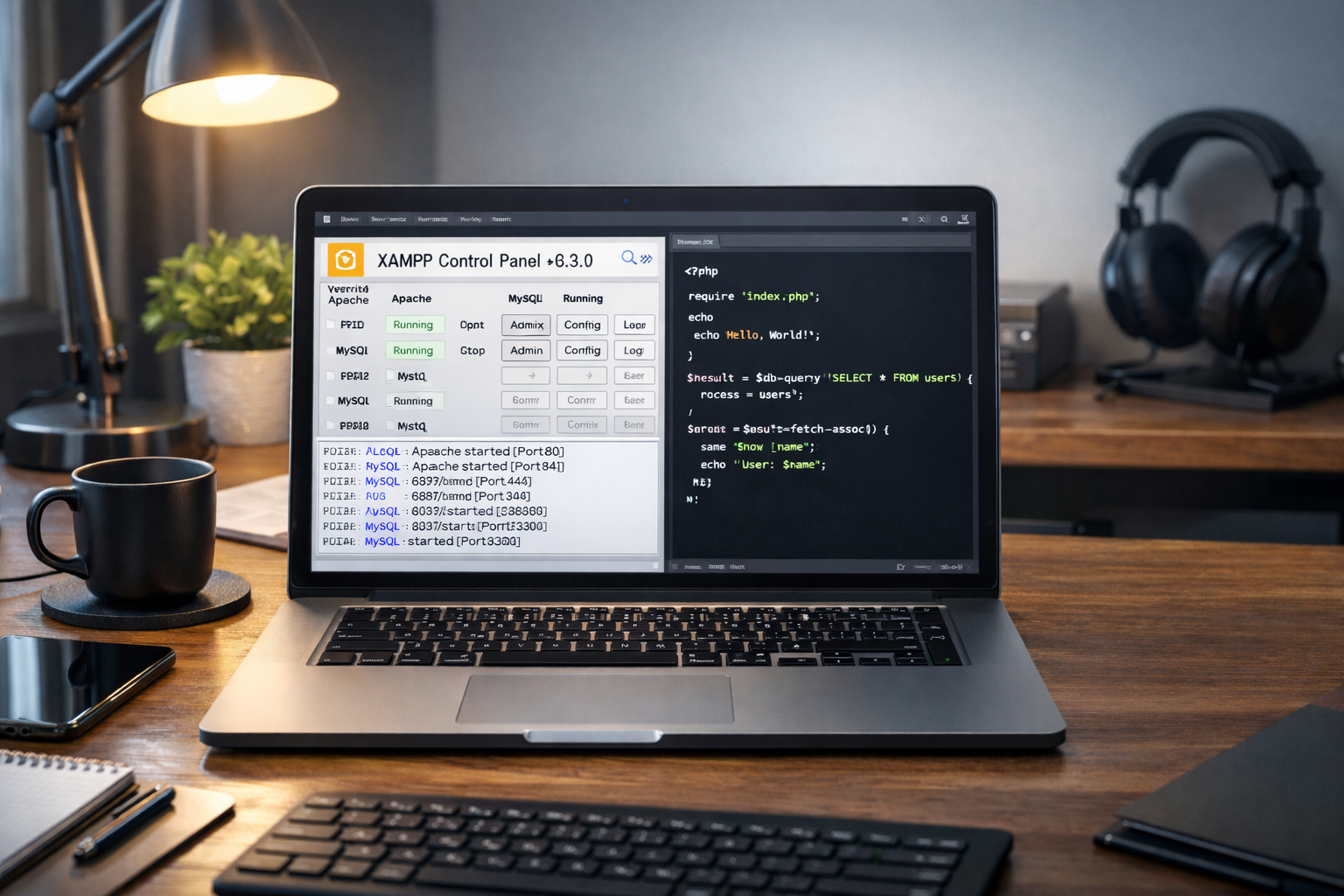
XAMPP: Complete Guide to Install and Use Locally
How to Install, Configure, and Run XAMPP for PHP Development
XAMPP is a free, open-source local server environment designed to run PHP, MySQL, and Apache on your computer. It simplifies the development process by bundling all required components in a single package.
Beginners and professional developers alike often ask: what is XAMPP used for? The answer is simple: it allows testing and developing PHP applications locally before deploying them to a live server.
According to Apache Friends, it is one of the most popular solutions for local PHP development due to its ease of installation and cross-platform support.
Why Choose XAMPP for Local Development?
Using XAMPP provides several advantages:
- Pre-configured environment: Apache, PHP, MySQL, and Perl are ready to use.
- Cross-platform compatibility: Works on Windows, macOS, and Linux.
- Beginner-friendly: Easy to install and configure.
- Community support: Large user base and active forums.
For developers managing WordPress themes, PHP scripts, or plugins, it provides a safe environment for testing without risking live servers. You can also use premium CemfusTools VIP resources for local testing.
How to Install XAMPP
Step 1: Download the Installer
Get the latest XAMPP version from the official site. Avoid third-party downloads to prevent malware.
Step 2: Run the Installer
Follow these steps:
- Launch the installer
- Choose the components: Apache, MySQL, PHP, and phpMyAdmin
- Select installation folder
- Complete setup
Official documentation provides detailed guidance on installation for all platforms.
Step 3: Start Apache and MySQL
Once installed, open the XAMPP Control Panel and click Start next to Apache and MySQL. These are essential to run PHP scripts and manage databases.
Running PHP with XAMPP
After starting Apache, PHP files can be placed inside the htdocs folder in the installation directory. For example:
Open your browser and navigate to:
This executes your PHP scripts locally. For beginners, testing a simple PHP script like <?php echo "Hello World"; ?> confirms that XAMPP is working correctly.
Managing MySQL Databases in XAMPP
XAMPP includes phpMyAdmin, a web-based MySQL management tool. You can:
- Create databases
- Manage tables
- Execute SQL queries
- Import/export data
For WordPress development, this is where you configure your local database before installing the CMS.
How to Configure XAMPP for Advanced PHP Development
Enabling PHP Extensions
Many PHP applications require extensions like cURL, GD, or mbstring. Enable them by editing the php.ini file and restarting Apache.
Changing PHP Version
XAMPP allows switching PHP versions if your project requires compatibility. This is useful when testing themes or plugins across different versions.
Setting Up Virtual Hosts
To mimic live server environments:
- Open
httpd-vhosts.conf - Add virtual host entries
- Update your system
hostsfile
This enables you to run multiple projects with custom domain names locally.
Common Errors and How to Fix Them
Apache Not Starting
- Check for port conflicts (commonly 80 or 443)
- Stop conflicting applications like Skype
- Restart XAMPP as administrator
MySQL Connection Issues
- Ensure the service is running
- Verify username/password (default: root with no password)
PHP Script Not Executing
- Confirm file is in
htdocs - Make sure Apache is running
- Use
.phpextension, not.html
XAMPP for WordPress Development
It is particularly popular for testing WordPress themes and plugins before deployment.
Steps:
- Download WordPress
- Create a database in phpMyAdmin
- Place WordPress files in
htdocs/project-name - Update
wp-config.phpwith database details - Access via
http://localhost/project-name
Using XAMPP ensures developers can test premium GPL themes and plugins safely, as offered by platforms like CemfusTools VIP.
Integrating XAMPP with External Tools
XAMPP can work alongside other tools for efficient development:
- Composer for dependency management
- Git for version control
- VS Code or PhpStorm for coding
Combining XAMPP with these tools creates a professional-grade local development setup.
How to Use XAMPP for PHP Automation
Beyond web projects, XAMPP can execute PHP scripts for tasks like:
- Cron jobs on local machines
- Automated report generation
- Batch database operations
Running scripts via command line inside the environment provides a seamless workflow.
Security Considerations in XAMPP
XAMPP is designed for local development, not production. Security risks arise if:
- Apache and MySQL are exposed to the internet
- Default credentials are not changed
For production deployment, switch to a live hosting provider like Hostinger with secure PHP execution.
Tips for Optimizing XAMPP Performance
- Enable OPcache in
php.ini - Use lightweight database tables
- Limit unnecessary Apache modules
- Keep it updated
These optimizations make local PHP development faster and closer to live server performance.
Comparing XAMPP with Other Local Servers
| Feature | XAMPP | WAMP | MAMP |
|---|---|---|---|
| Platform | Cross-platform | Windows only | macOS/Windows |
| Components | Apache, MySQL, PHP, Perl | Apache, MySQL, PHP | Apache, MySQL, PHP |
| Ease of Use | Very beginner-friendly | Beginner-friendly | Moderate |
| Community | Large | Medium | Medium |
XAMPP remains the preferred choice for PHP and WordPress developers due to its simplicity and extensive support.
Leveraging XAMPP for Learning PHP
XAMPP is ideal for students and beginners learning how to execute PHP scripts. It provides a safe sandbox for experimentation.
Tools from free platforms like CemfusTools can enhance learning with PHP-based projects and utilities.
Internal Resources to Complement Usage
- Explore CemfusTools Single Tools for testing PHP scripts
- Check Bundle Plans Prices for affordable developer tools
- Use free tools like keyword density or plagiarism checkers to improve content-driven PHP sites
These internal resources integrate with environments for full-stack development and testing.
The Last Word
XAMPP remains the most accessible and powerful tool for running PHP locally. Whether you are developing WordPress themes, PHP scripts, or complex web applications, understanding XAMPP installation, configuration, and execution is essential.
By mastering local environments, enabling proper PHP extensions, and integrating modern developer tools, you can ensure smooth project development and testing before moving to live servers.
